

Help Center
Getting Started
User Login
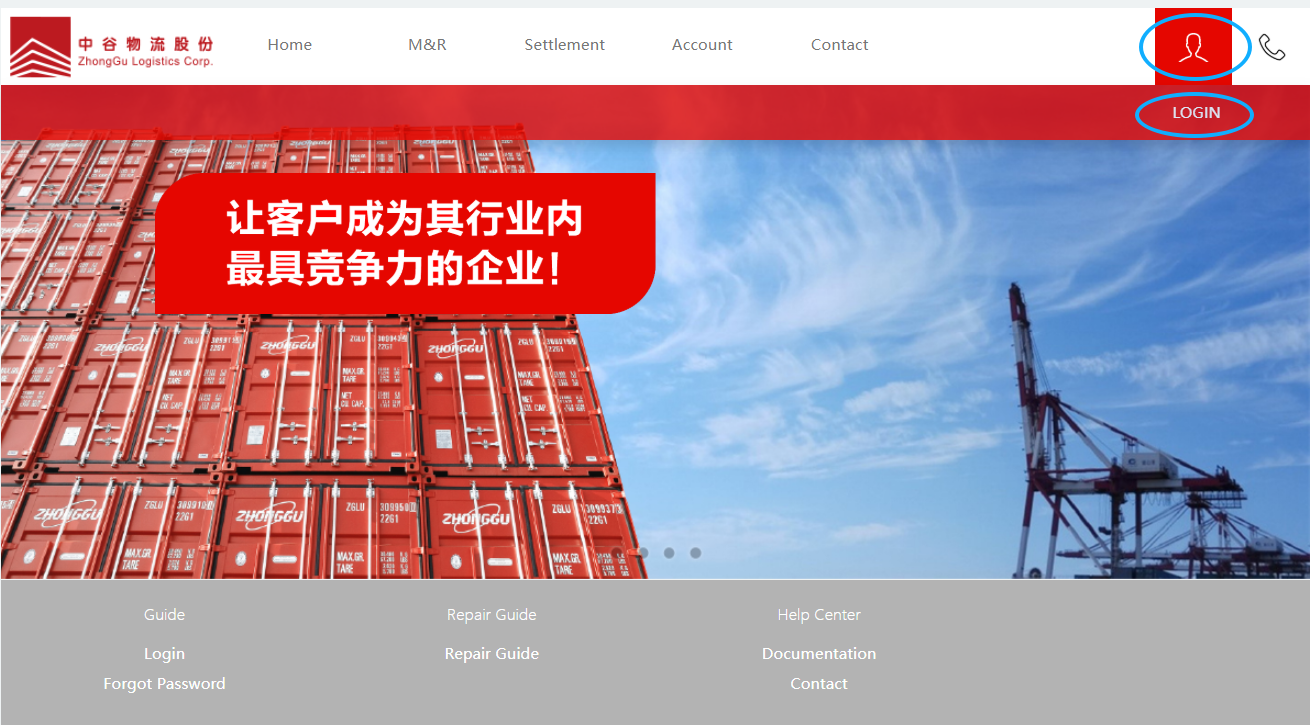
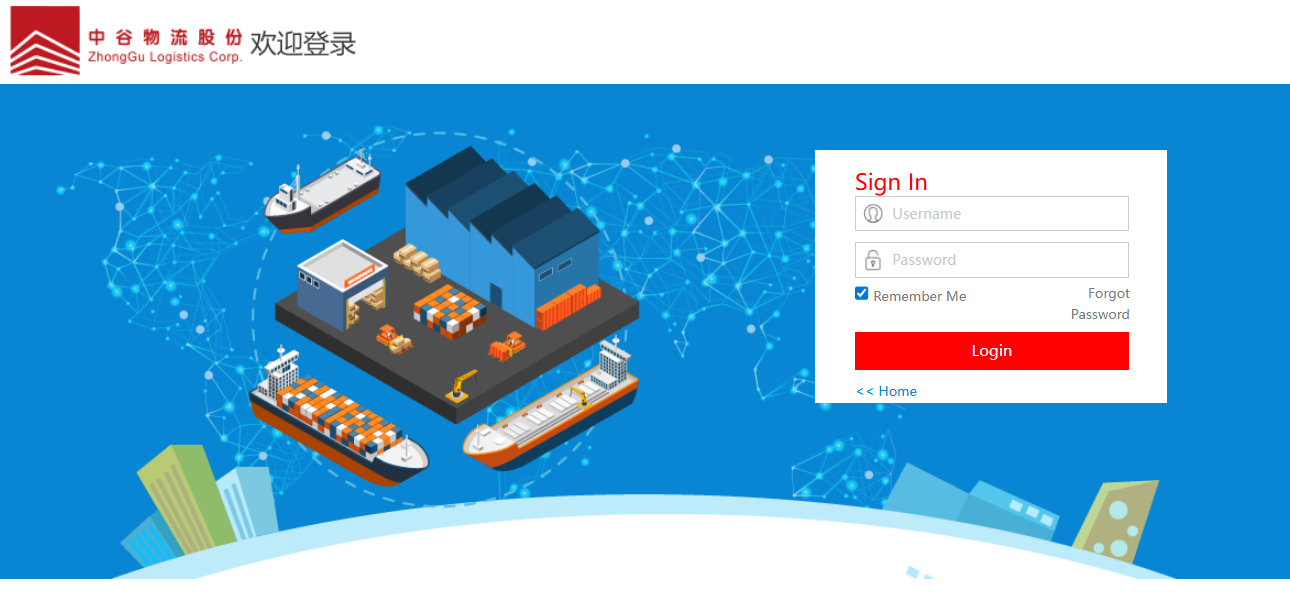
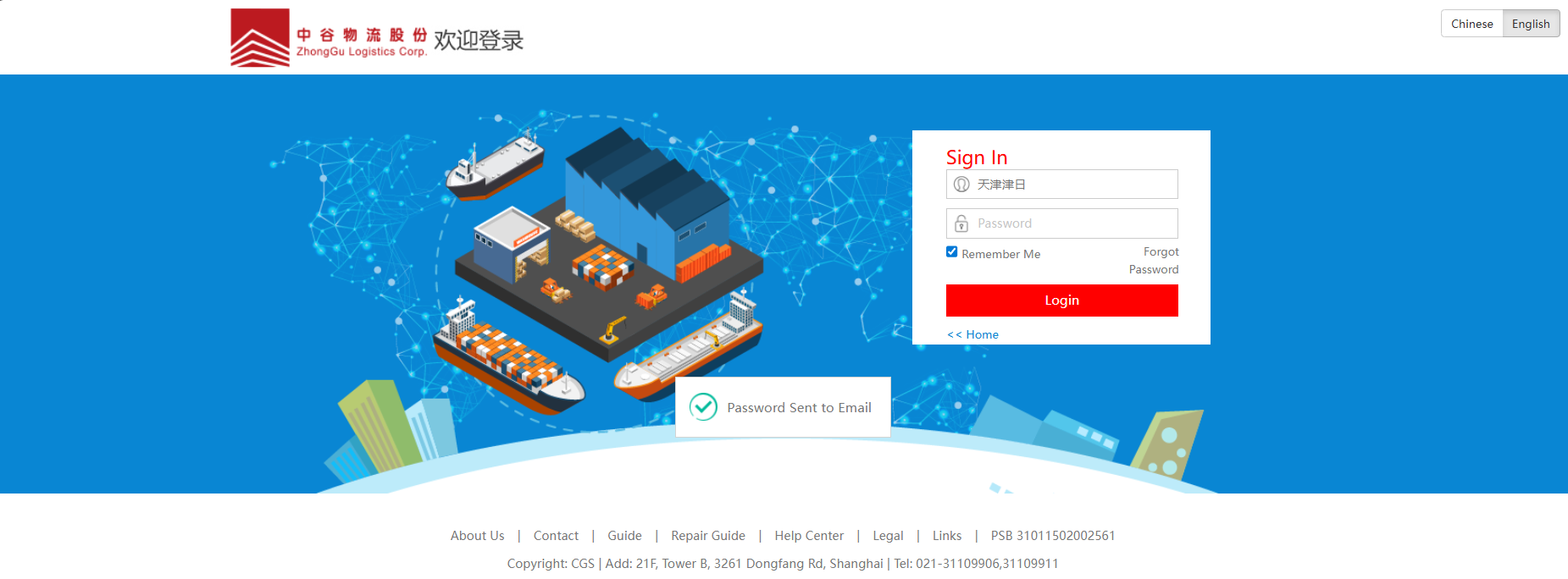
1. Click the "Login" button at the top to jump to the login page.
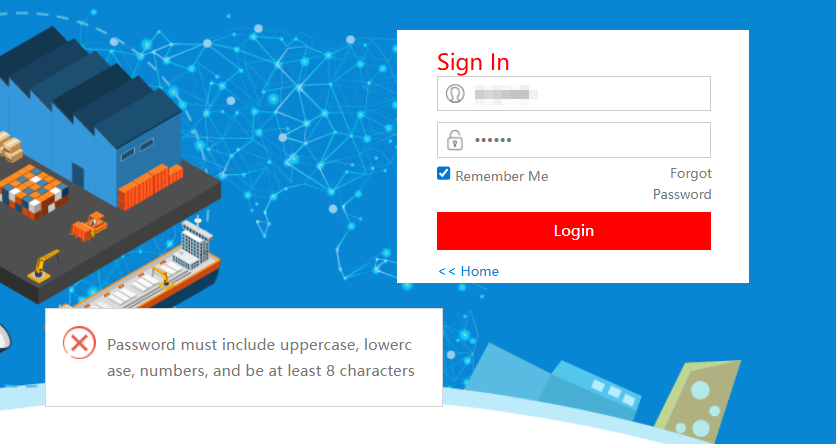
2. When logging in for the first time, after entering the initial password, you will be prompted to change the password.
3. After filling in the new password, click Modify.
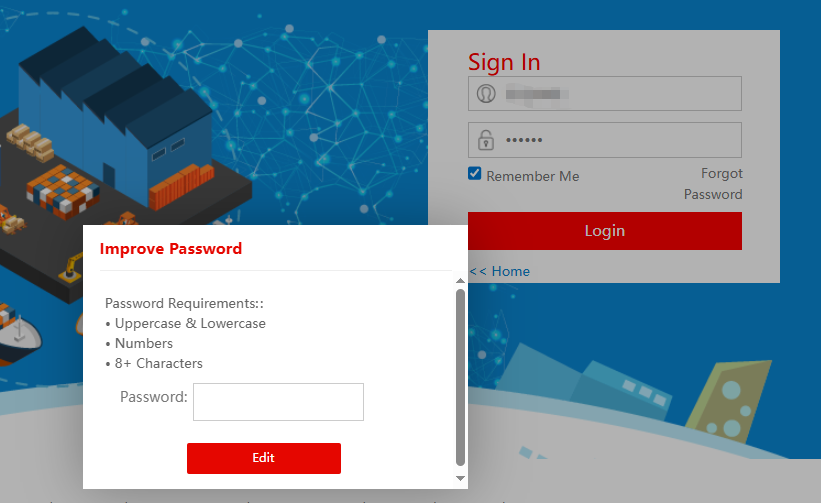
4. After changing the password, enter username and password, then click Login.
Forgot Password
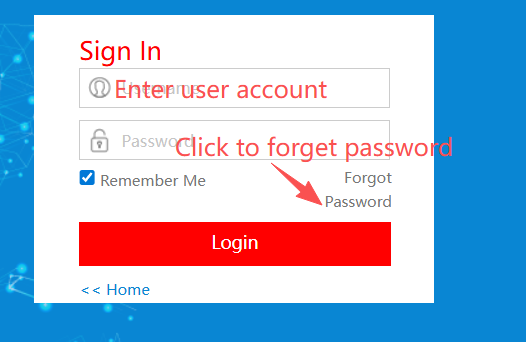
1. On the login page, enter the user account and click Forgot Password.
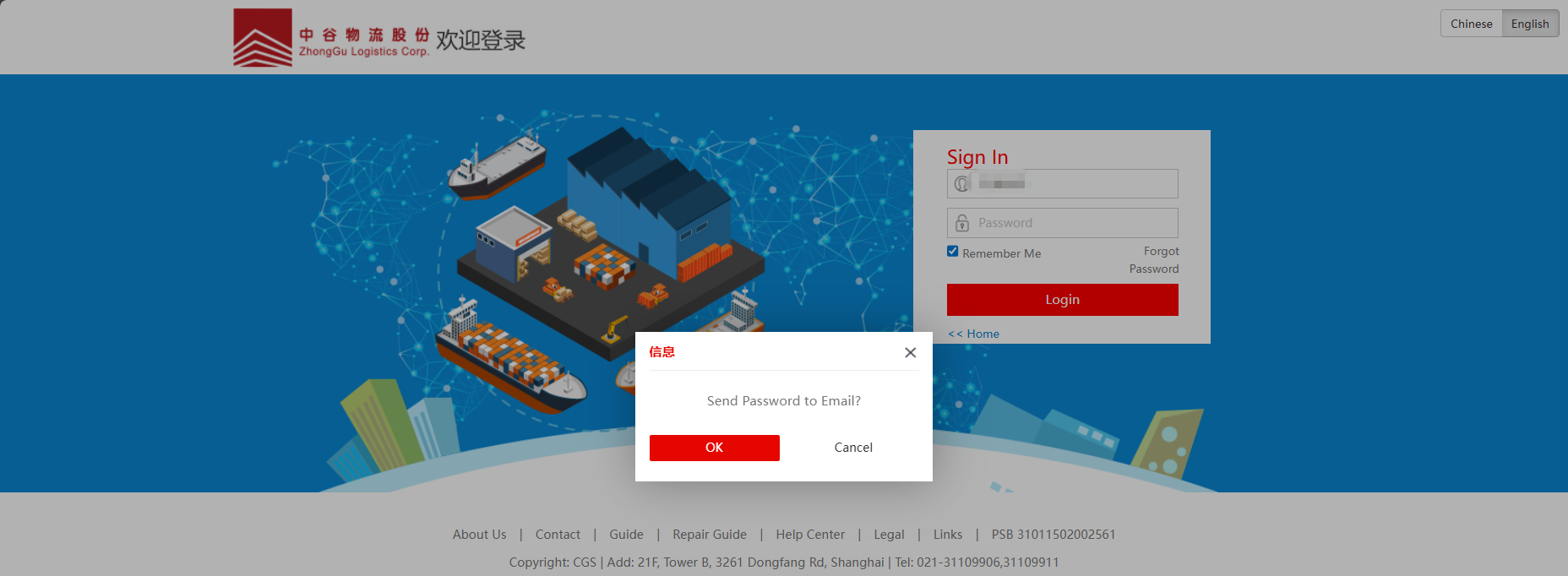
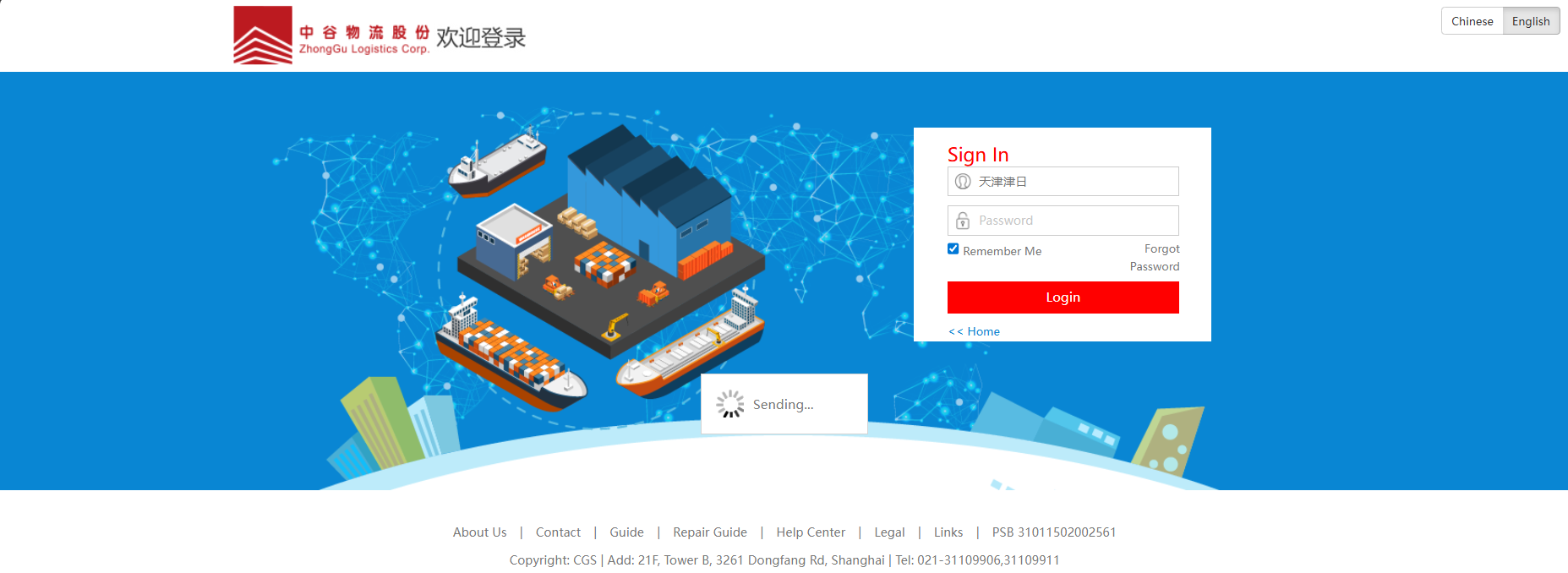
2. Wait for the notification of successful sending.
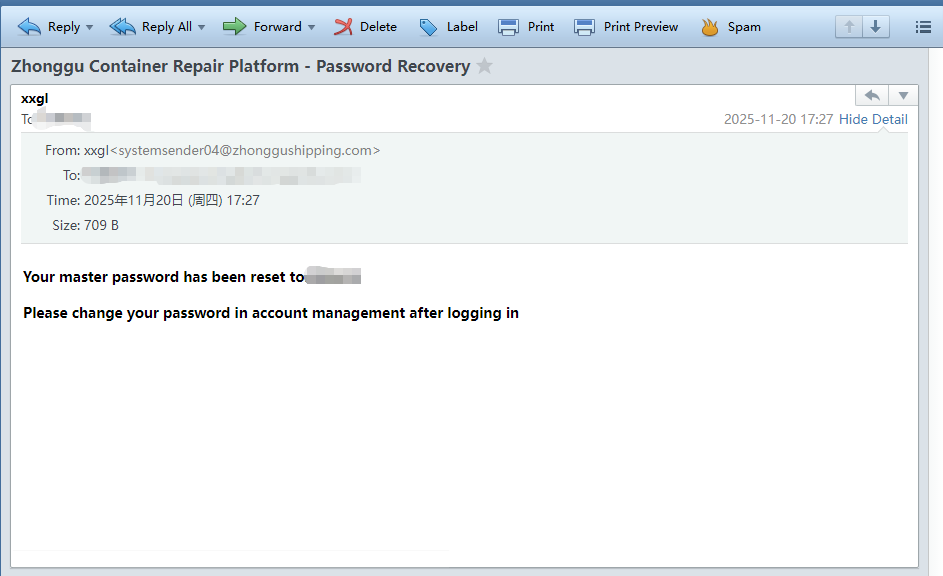
3. Check your email (the email will be sent to the mailbox filled during registration. Some mailboxes may misjudge it as spam, please check the spam folder).
Container Repair Guide
Container Repair Inquiry
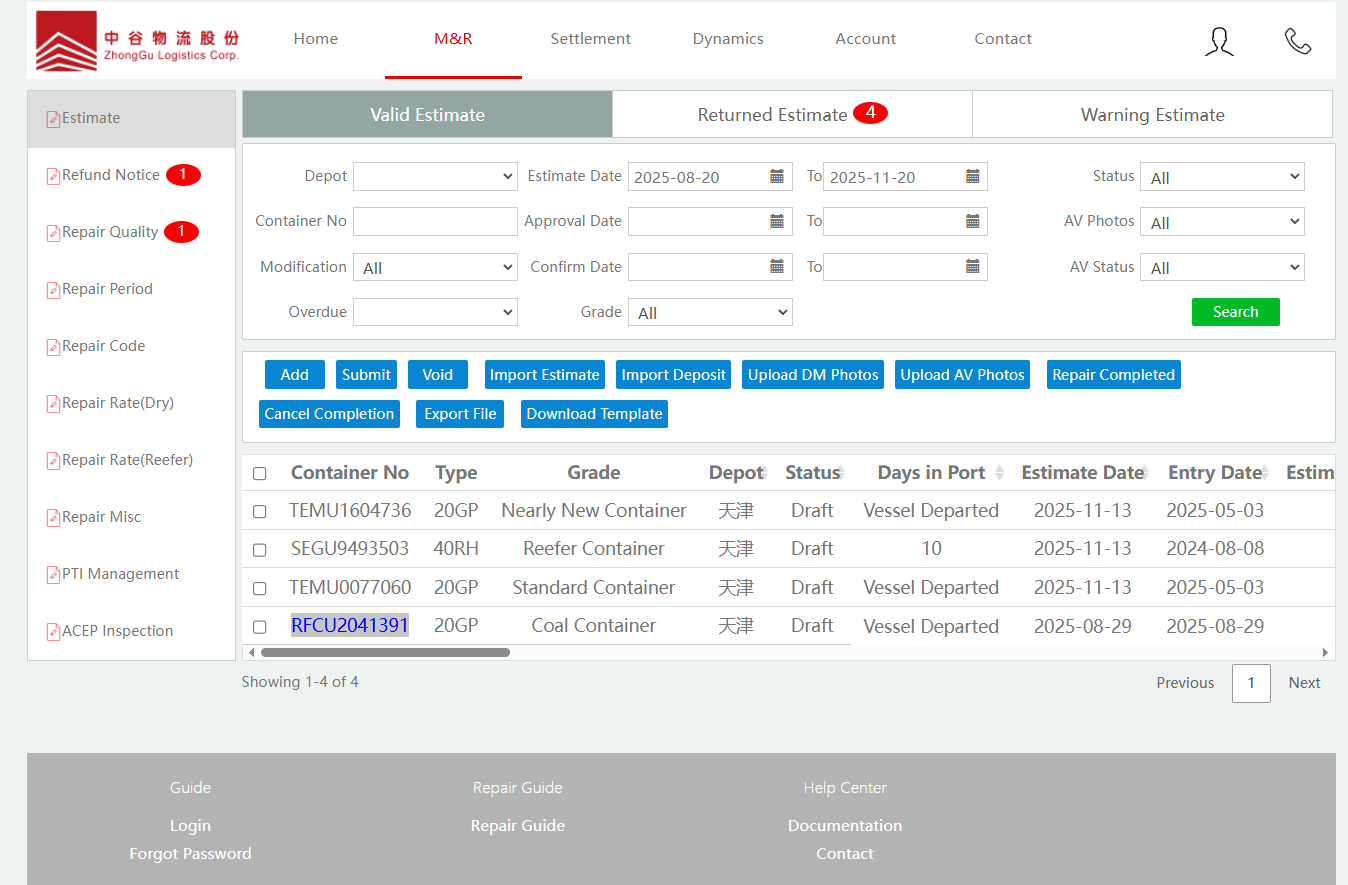
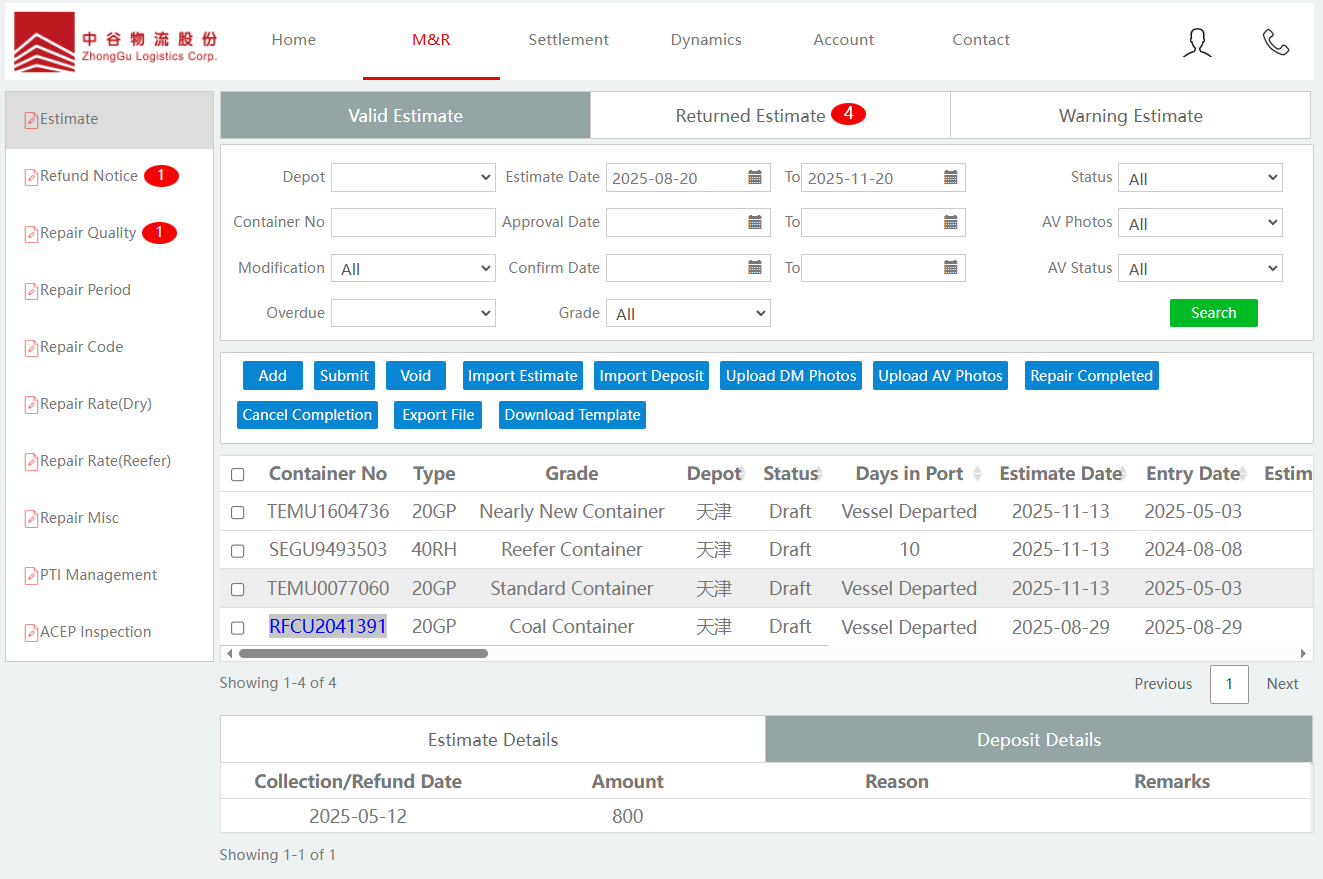
1. Click Container Repair.
Note:
Users who are not logged in do not have permission to access the page.
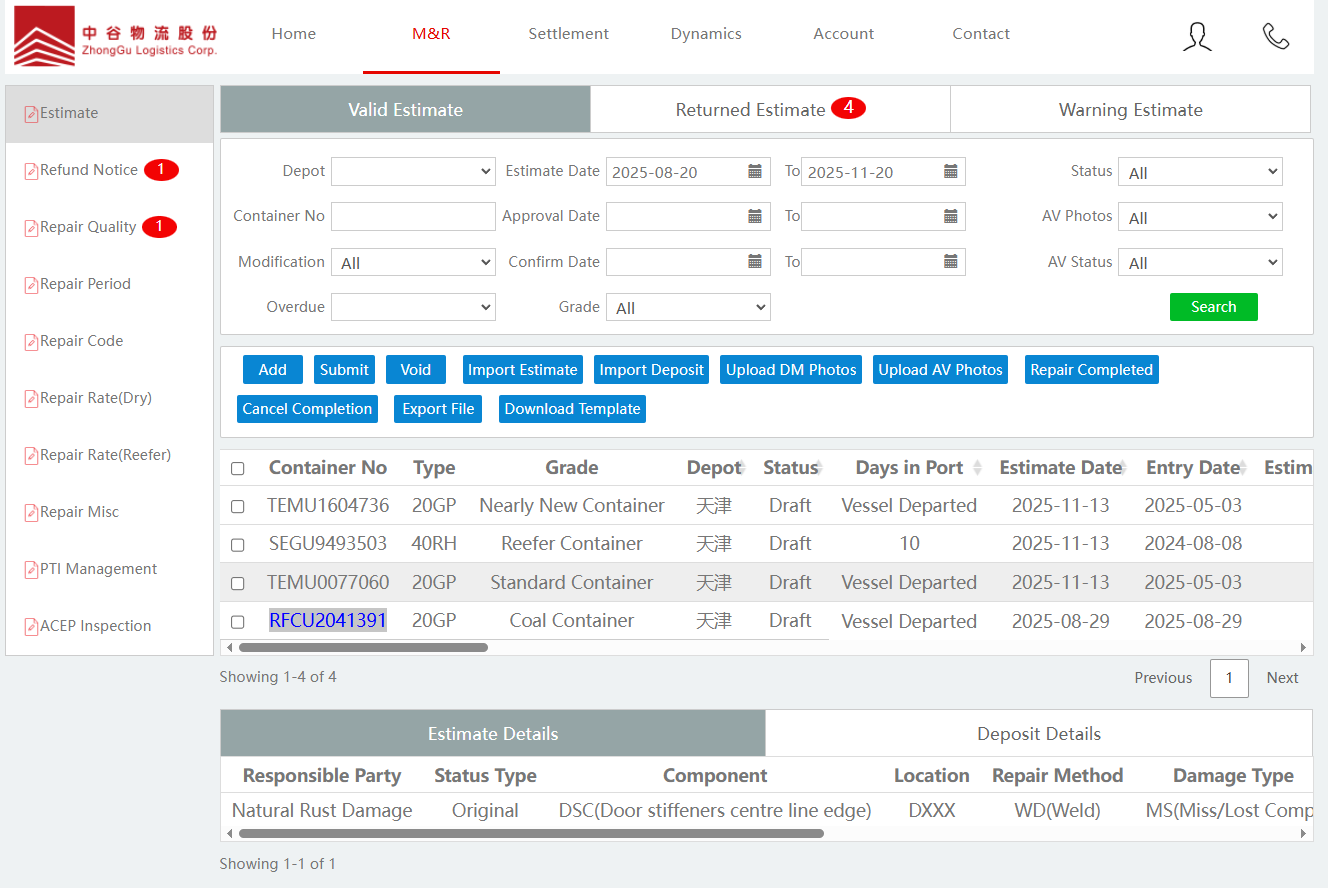
2. Click a record to display its Estimate details and deposit details.
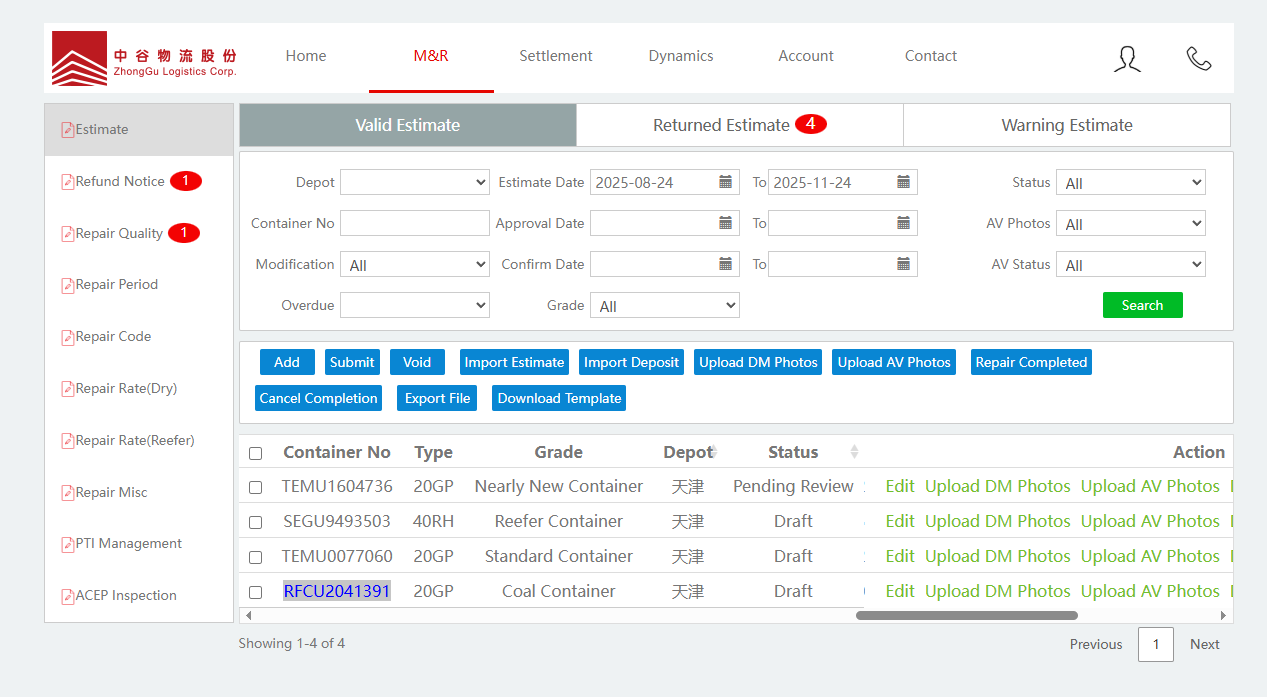
Add/Edit Repair Record
1. Add New

2. Edit

Upload Estimate/Deposit
1. Upload Estimate:
Click "Upload Estimate", select the Estimate file to upload (format can be viewed by Download Template -> Download Dry Container Estimate Template).
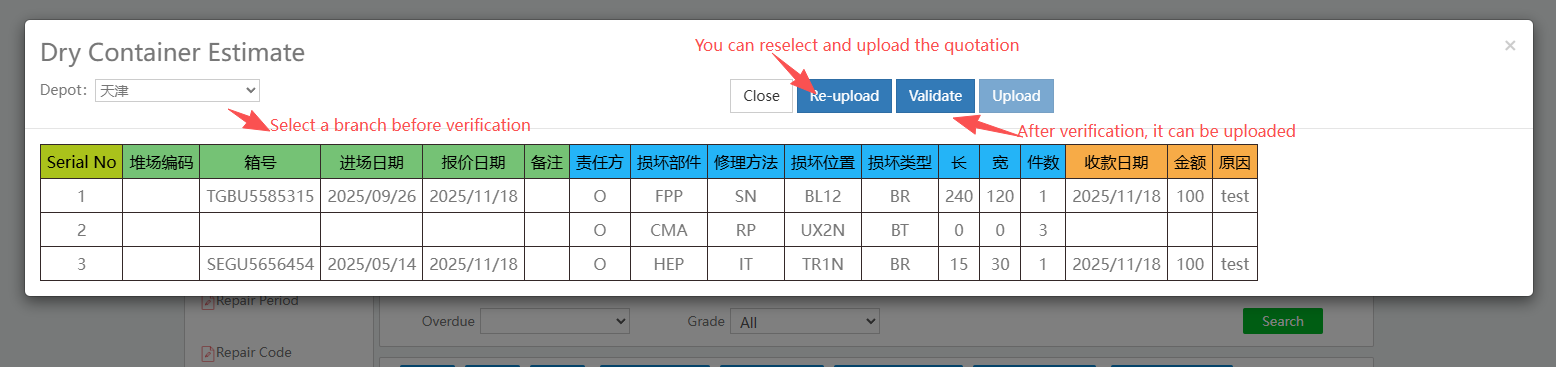
Need to validate information accuracy first. If validation fails, error reasons will be displayed.
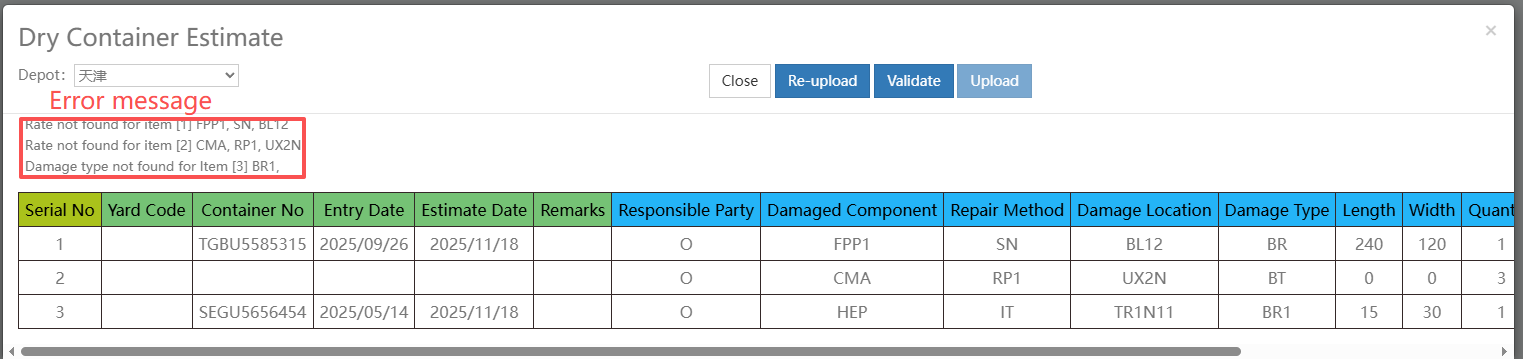
If validation passes, click the upload button to perform the upload operation.

2. Upload Deposit:
Click "Upload Deposit", select the deposit file to upload (format can be viewed by Download Template -> Download Deposit Template).
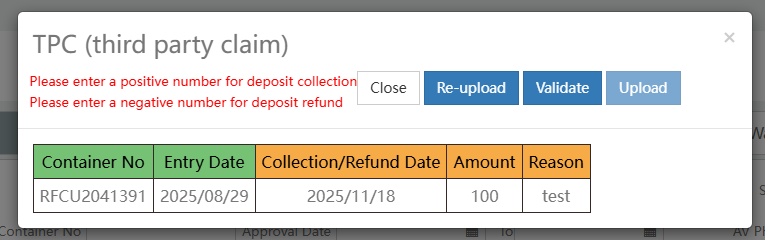
Need to validate information accuracy first. If validation fails, the erroneous positions will turn red.
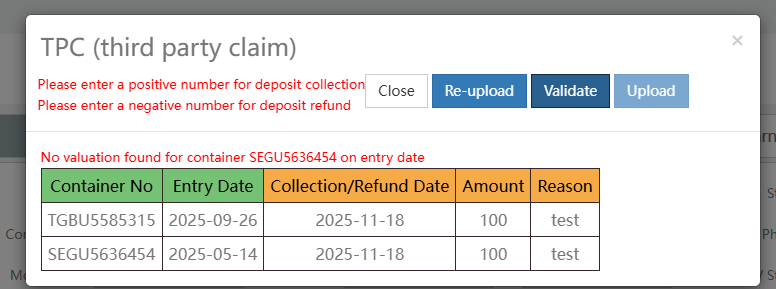
If validation passes, click the upload button to perform the upload operation.

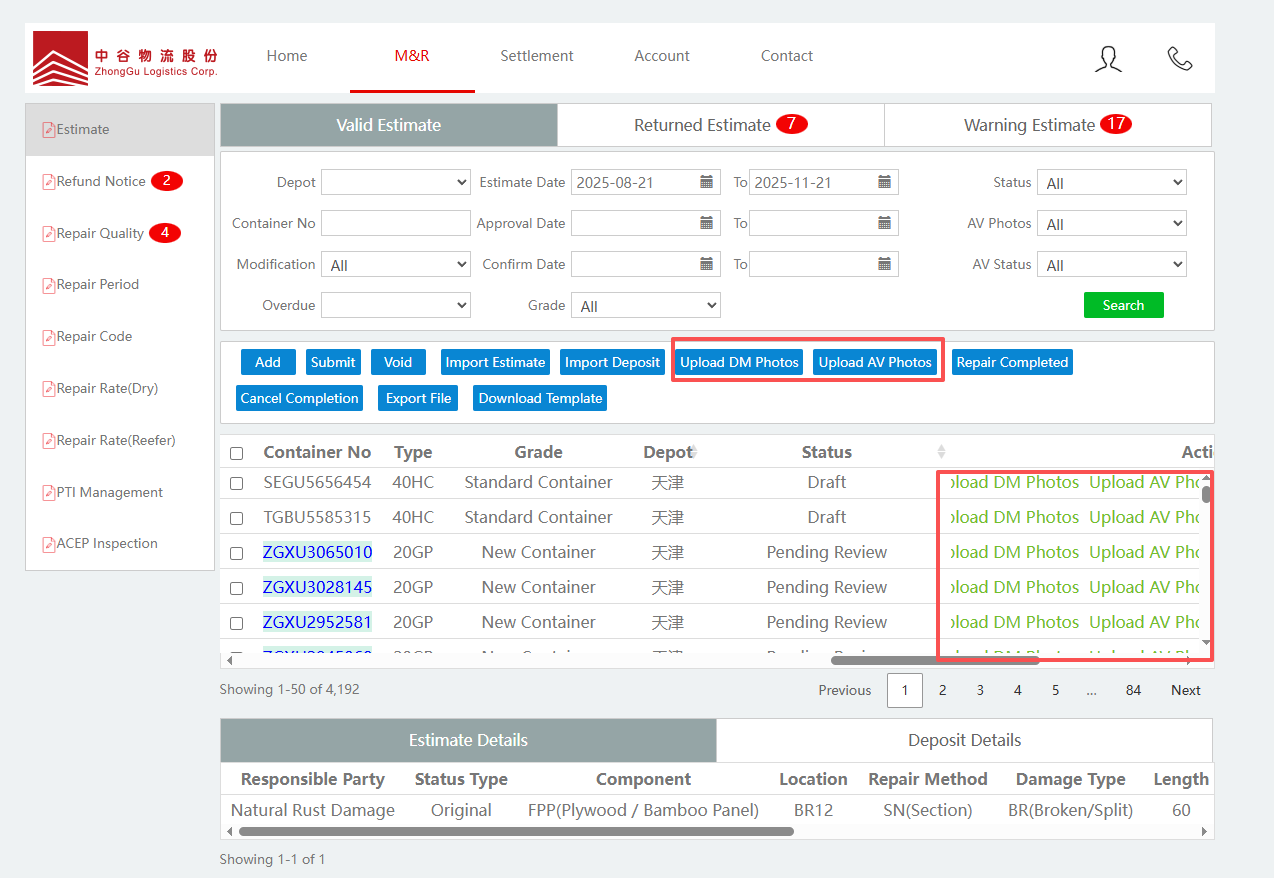
Upload image (including photos of damaged boxes and finished products)
There are two ways to upload images.
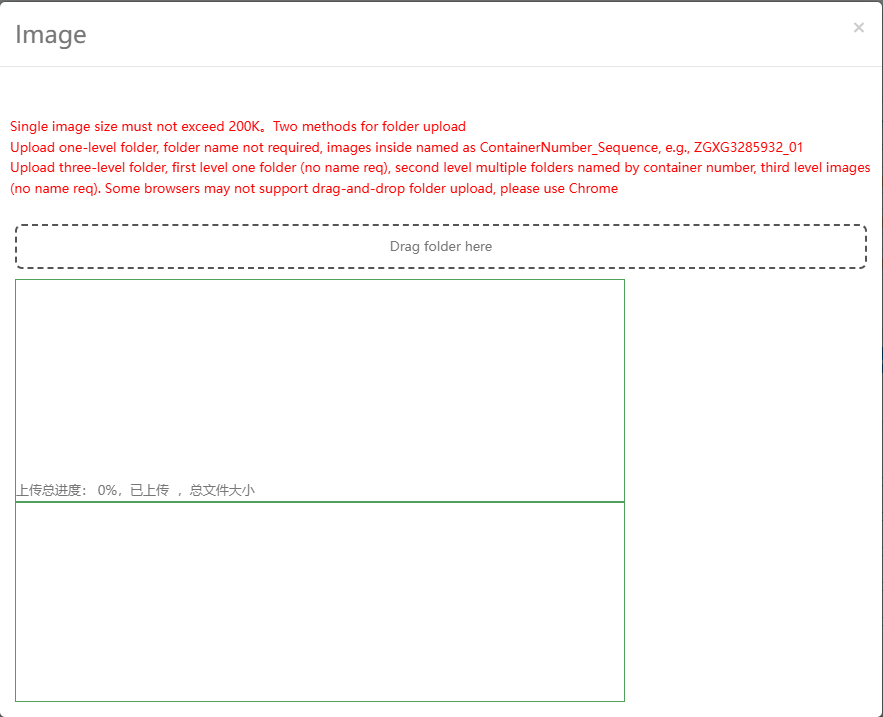
1: Click the upload image button on the Estimate page (including upload damage photos and completion photos), drag and drop folders of specified format.Uploadable folders are of two types: (1) Upload one-level folder, folder name not required, images inside named as ContainerNumber_Sequence, e.g., ZGXG3285932_01. (2) Upload two-level folder, first level one folder (no name req), second level multiple folders named by container number, containing corresponding container images (no name req). Some browsers may not support drag-and-drop folder upload, please use Chrome.
2: Click the upload image button for a specific Estimate (including upload damage photos and completion photos) to upload images for that specific Estimate.
Uploaded image size must not exceed 200K.
View Repair Codes
Understand the specific meanings of damaged components, repair methods, and damage types through repair codes.
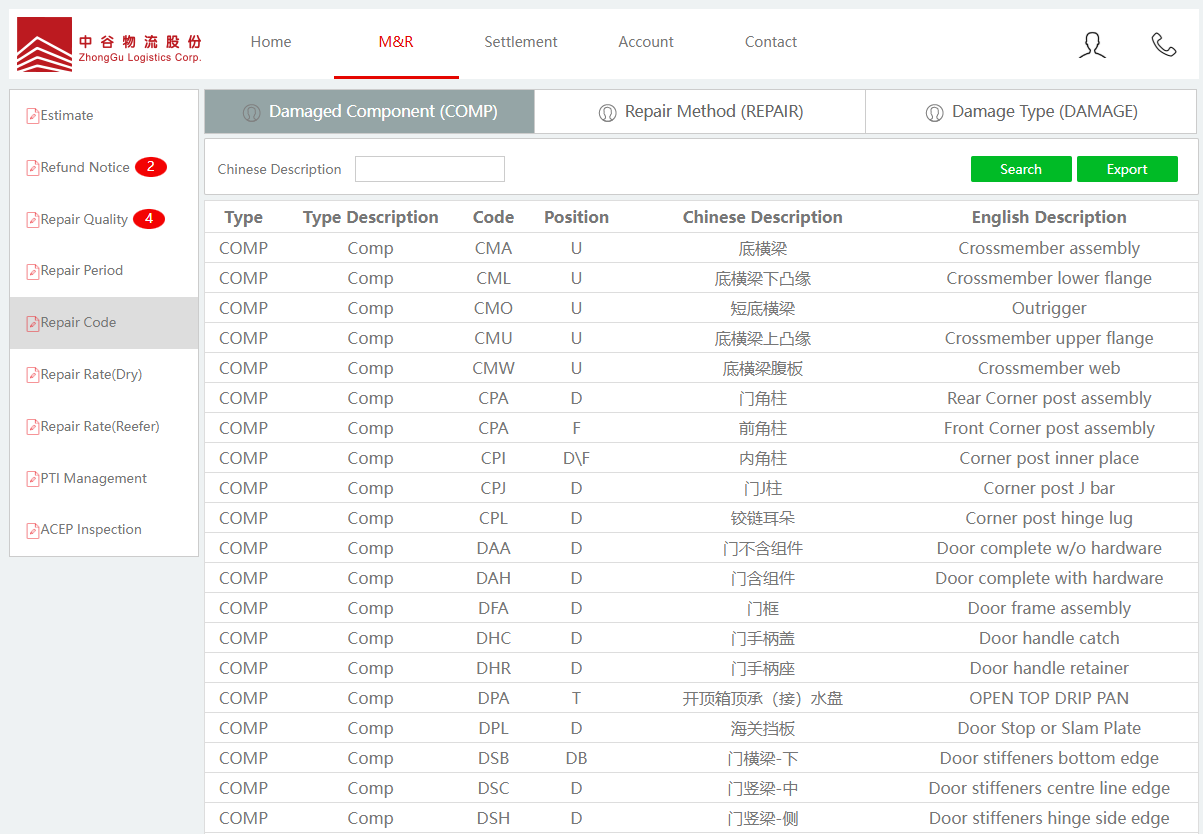
View Repair Rates
View rate information for each depot.
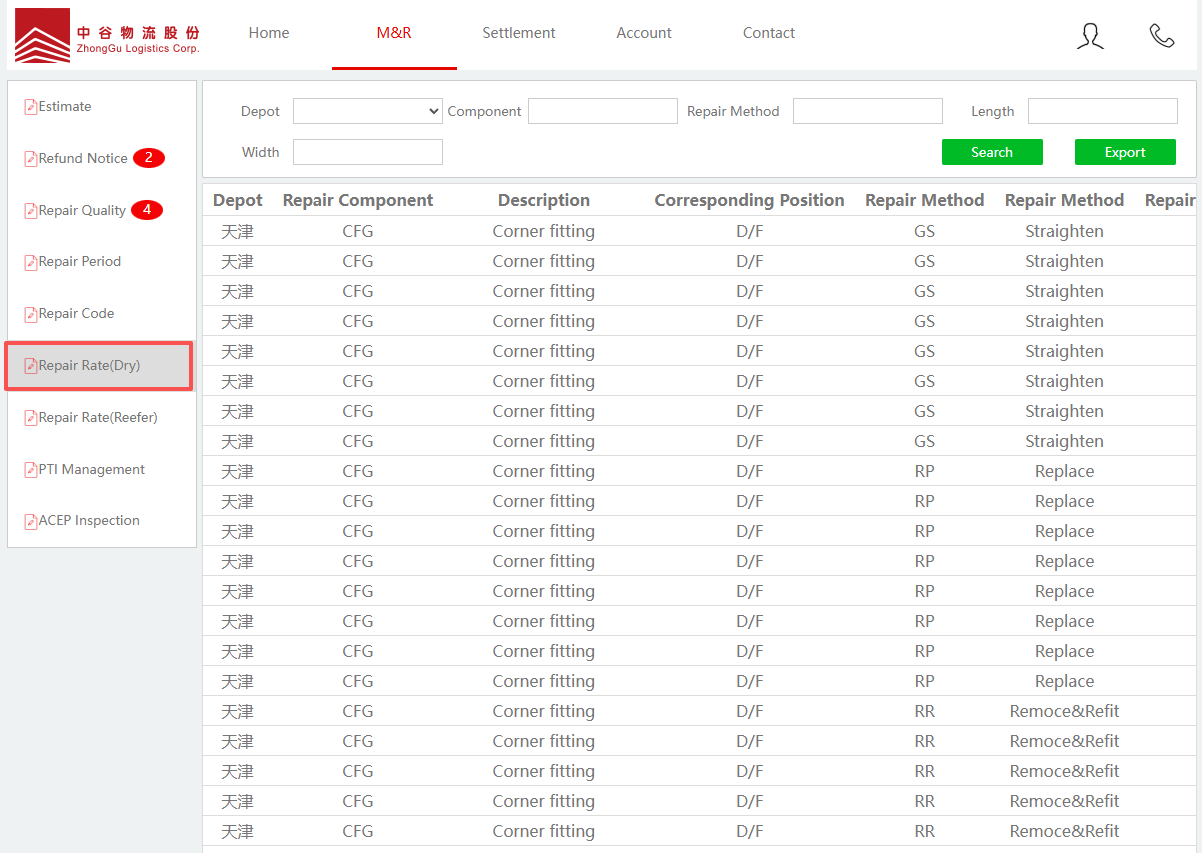
Settlement Center
Fee Inquiry
1. The summary page shows the fee amounts for each depot.
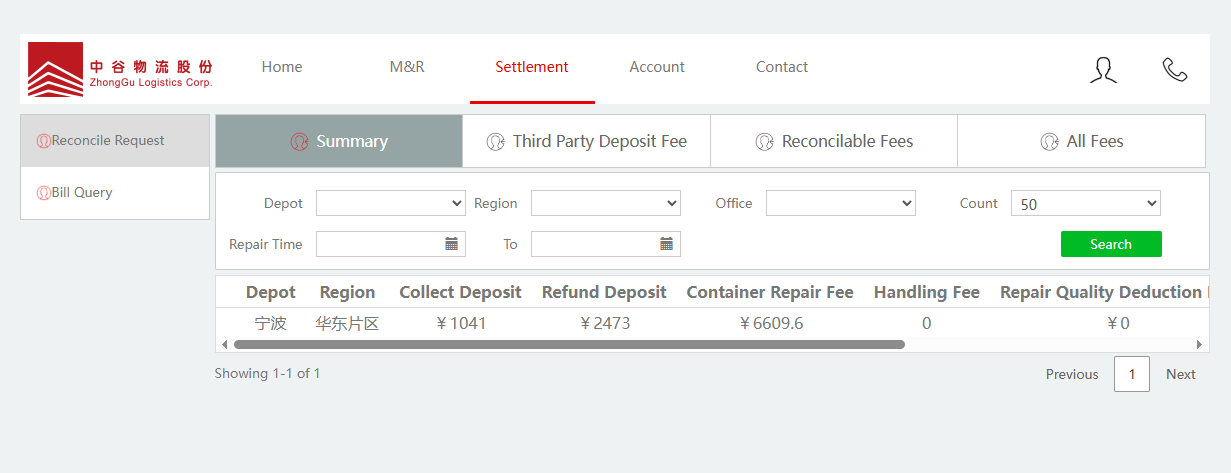
2. The Reconcilable Fees page shows fees reconcilable this month and allows reconciliation application (must have the reconciliation period set by business personnel first).
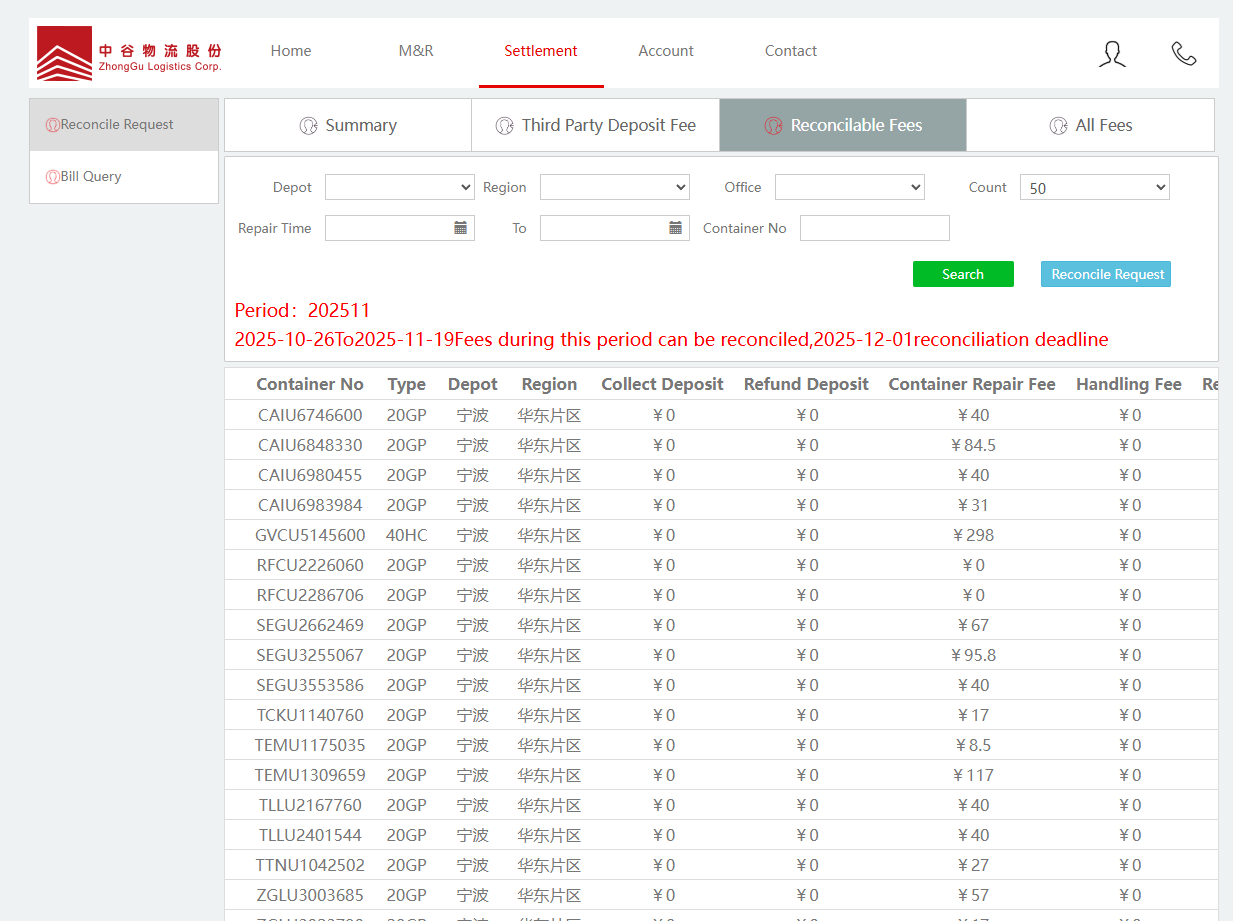
3. The All Fees page shows all fee details.

Reconcile request
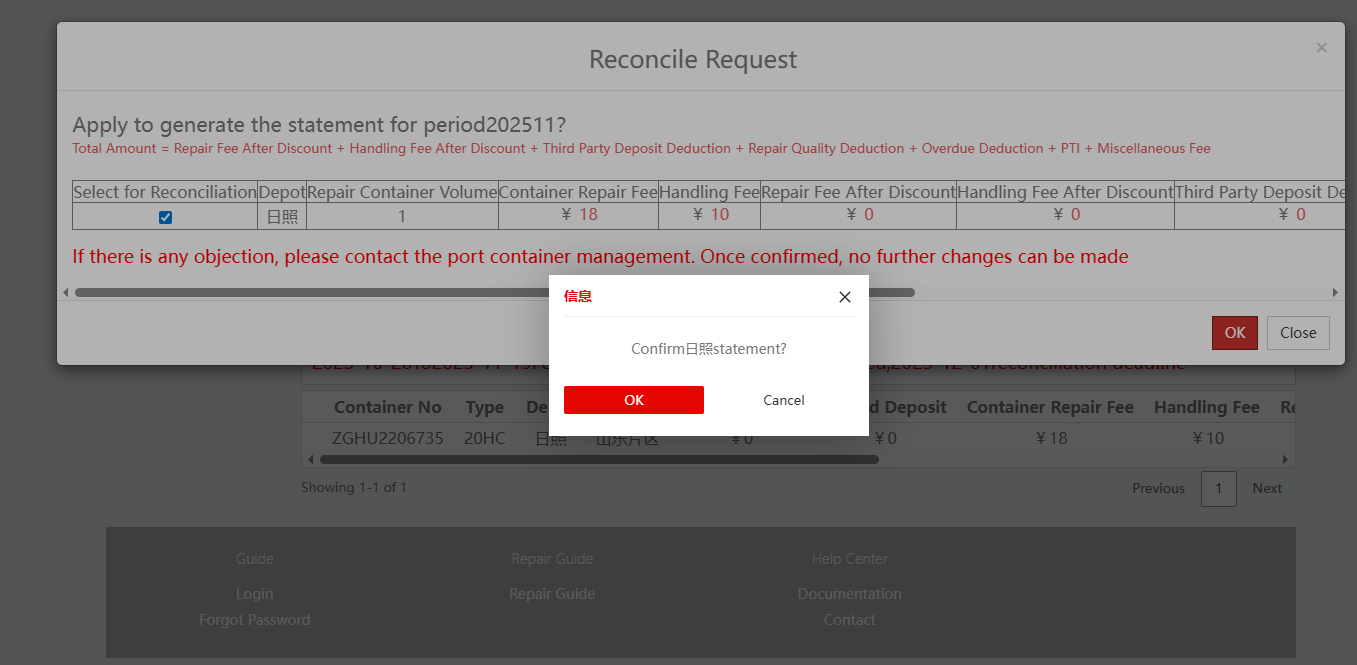
1. Click Reconciliation Application on the Reconcilable Fees page, it will prompt to confirm generating statements for each depot for this period (can only apply once per month).
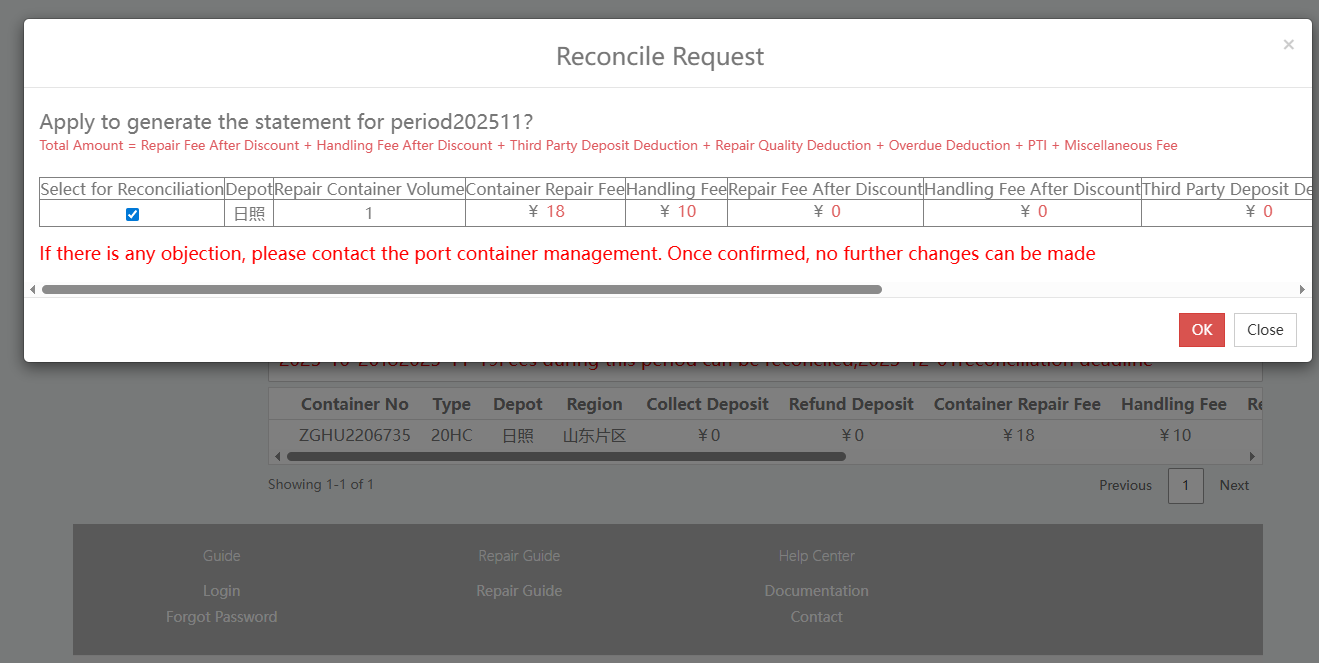
2. After confirmation, fill in the application remarks, then click Confirm.
Statement Inquiry
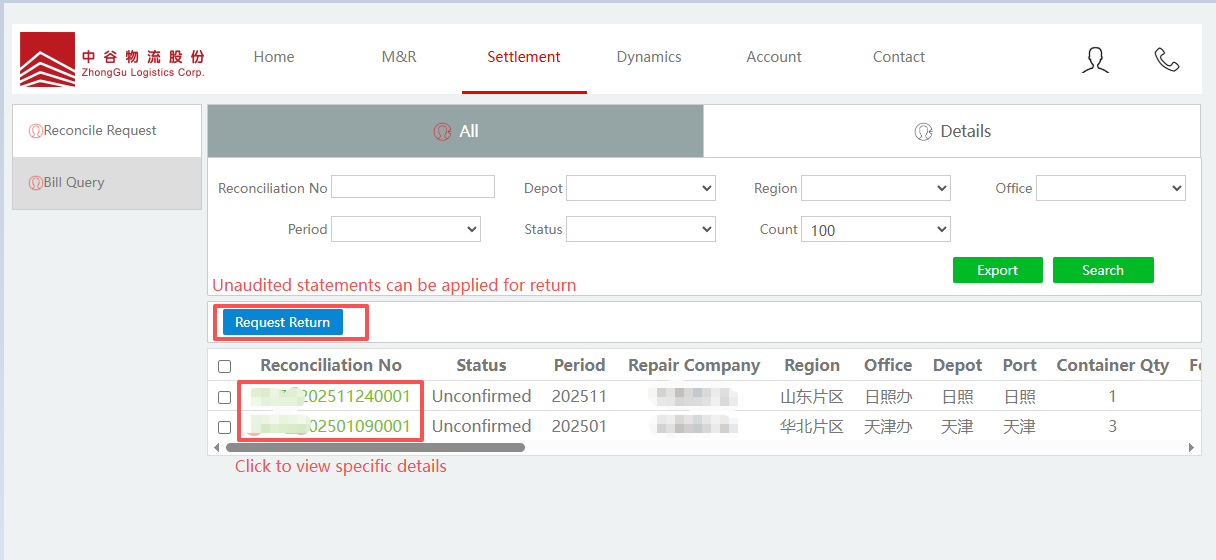
1. Can view statement information and review status. Statements with issues and not yet reviewed can be returned. For statements already reviewed, please contact business personnel to return.
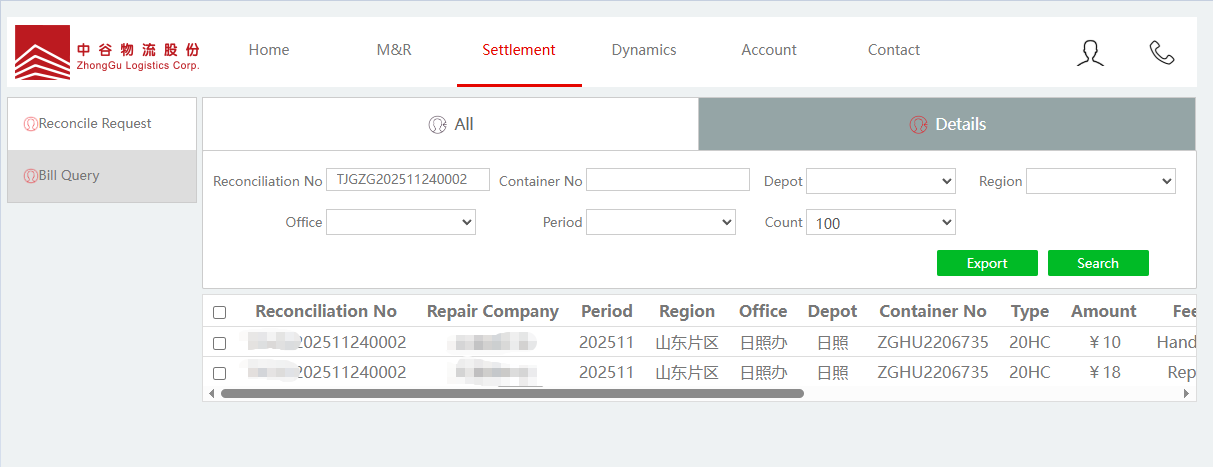
2. Can click the reconciliation number to view statement details.
Account Management
Modify Personal Information
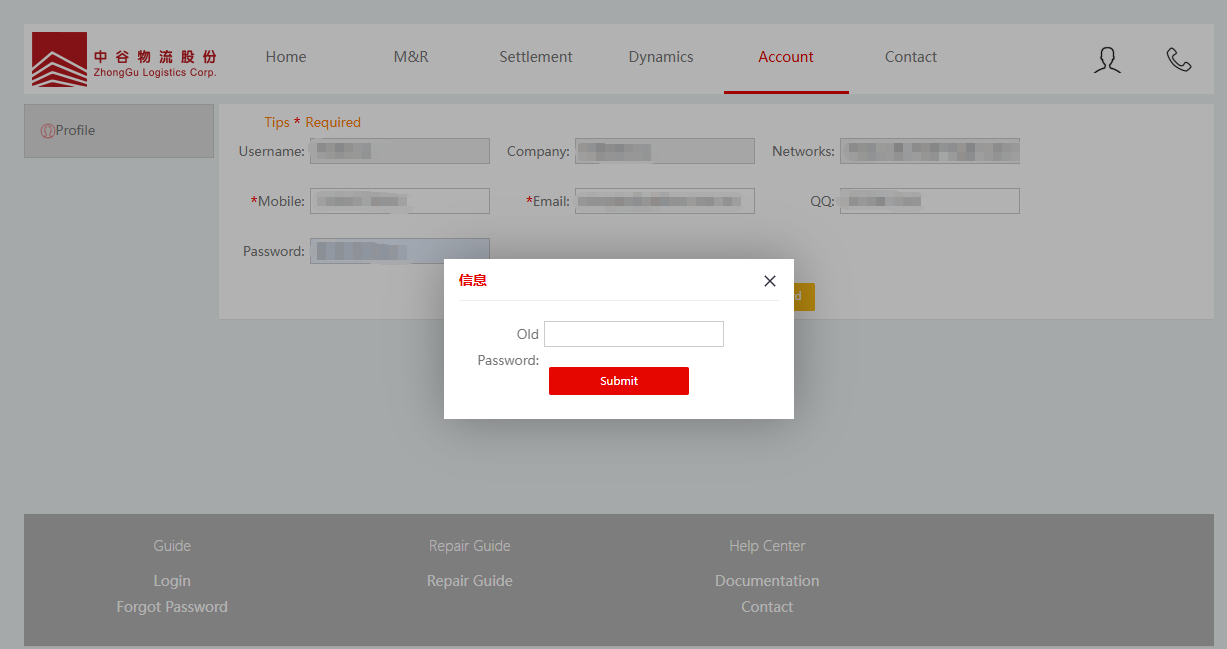
1: Click Modify Password to display the password fields.
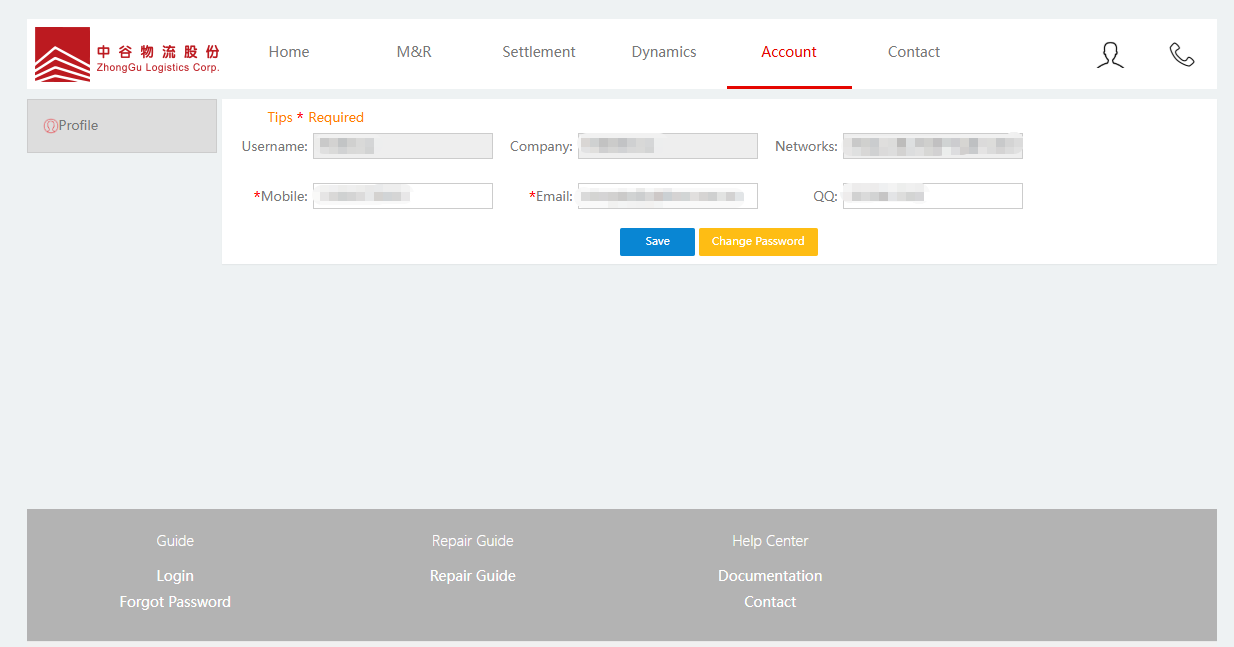
2: After entering personal information and saving, you will be prompted to enter the original password. Save successfully after entering the correct password.